
Samsung Smart Fridge Software Compatibility Tips
What Makes Samsung Smart Fridges Special?
Samsung Smart Fridges are more than just places to keep your food cold. They’re packed with smart technology, making them an essential part of any modern home. Features like the Family Hub and SmartThings connect to other devices in your house, making life easier and more organized.
The Family Hub is a touchscreen built into the fridge door that acts like a control center for your kitchen. It lets you manage grocery lists, play music, watch TV, and even leave notes for your family. The SmartThings app takes this a step further by connecting your fridge to your phone and other devices so you can control your fridge no matter where you are. These features are great for tech fans, busy parents, or anyone looking to make their daily routine smoother.
Smart Fridge Features Explained
What Is the Family Hub?
The Family Hub is like a giant tablet on your fridge. It helps you organize your life with tools like shared calendars, to-do lists, and digital notes. Plus, you can stream music or watch videos from the fridge while cooking. It’s designed to make your kitchen experience more fun and efficient.
How Do SmartThings Work with Your Fridge?
SmartThings is an app that links your fridge to your other smart devices. You can adjust your fridge’s settings, check its energy usage, and get alerts if the door is open. It keeps everything in your smart home working together so you can focus on more important things.
What to Know Before Setting Up Your Fridge
Is Your Fridge Compatible?
Not all Samsung fridges work with SmartThings, so check your model. Most newer models with the Family Hub are compatible, but it’s always a good idea to confirm by reading the manual or checking online.
Does Your Smartphone Meet the Requirements?
Your phone needs to be up-to-date to work with SmartThings. For Android, you need version 8.0 (Oreo) or later, and for iPhones, you need version 12.0 or later. Ensure you have enough storage space and a good internet connection to install the app and keep it running smoothly.
Is Your Wi-Fi Ready?
A strong and secure Wi-Fi connection is key. Your network should have a minimum speed of 2 Mbps, and use a secure password. Avoid public Wi-Fi, and if your home has many smart devices, consider upgrading to a router that can handle them all.
How to Set Up Your Samsung Smart Fridge
Get Your Fridge and Phone Ready
First, turn on your fridge. Then, download the SmartThings app from your phone’s app store. If you don’t already have an account, create one and keep your login details handy.
Connect Your Fridge to Wi-Fi
Go to the fridge’s touchscreen settings and find the Wi-Fi option. Select your home network and enter the password. Once connected, your fridge will confirm the setup.
Install and Use the SmartThings App
Open the SmartThings app and log in. Go to “Add Device” and select “Refrigerator.” Follow the steps to pair your fridge with your phone. For this to work, make sure both devices are connected to the same Wi-Fi network.
Personalize Your Fridge Settings
Once paired, use the app to customize your fridge. Set your preferred temperature, turn on notifications, and explore other settings to make the fridge work best for you.
Keep Your Fridge Updated
Check for Updates
Firmware updates improve how your fridge works. You can check for updates through the fridge’s touchscreen or the SmartThings app. Regular updates keep your fridge running smoothly and securely.
Turn On Automatic Updates
Enabling automatic updates will save you time. Your fridge will stay current without you having to check manually.
Update the SmartThings App
Don’t forget to update the app on your phone. New versions often fix bugs and add features, so keeping up-to-date ensures the best experience.
Explore Advanced Features
Control Your Fridge Remotely
You can use the SmartThings app to adjust your fridge’s temperature or check on it when you’re not home. This is especially handy during vacations or when storing delicate items.
Manage Your Food Inventory
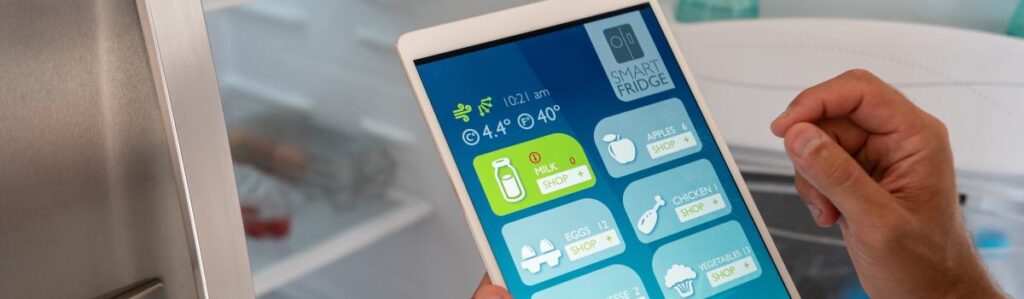
The Family Hub lets you track what’s in your fridge, set alerts for items about to expire, and even create shopping lists. It helps you avoid waste and makes meal planning easier.
Connect with Other Smart Devices
Your fridge can work with other devices, such as smart lights and thermostats. This integration creates a connected home that you can control from one app.
Try Smart Recipes
The fridge can suggest recipes based on what you have inside. It even adjusts portions and cooking times, saving you time and effort in the kitchen.
Monitor Energy Usage
The app allows you to monitor your fridge’s energy consumption and make adjustments to save money on your electric bill.
Solve Common Problems
Fix Wi-Fi Issues
If your fridge won’t connect, restart both the fridge and your router. Make sure your network name and password are correct. If issues persist, use the troubleshooting section in the SmartThings app.
Speed Up the App
If the SmartThings app is slow, clear its cache or reinstall it. Also, check that your phone’s operating system is updated.
Handle Update Errors
If a firmware update fails, restart the fridge and try again. For ongoing problems, contact Samsung support.
Manage Multiple Devices
If you have many smart devices, your Wi-Fi may become overwhelmed. Consider upgrading to a dual-band router to keep everything running smoothly.
Tips for Long-Term Use
Perform Regular Maintenance
Check for updates monthly and troubleshoot small issues before they become big problems. Staying proactive helps your fridge last longer.
Stay Informed on New Features
Samsung often releases updates with new tools and improvements. Keep an eye out so you can make the most of your fridge.
Protect Your Fridge from Hackers
Use a strong Wi-Fi password and enable two-factor authentication on your SmartThings account. Regular updates also help protect your appliance from online threats.
FAQs About Samsung Smart Fridges
Can I Use the Fridge Without the SmartThings App?
Yes, but you’ll miss out on remote control and inventory tracking features.
What Happens if Wi-Fi Goes Down?
Your fridge will still work, but you won’t be able to use smart features until the connection is restored.
How Often Should I Update?
Check for updates at least once a month to keep your fridge secure and running smoothly.
Conclusion
Samsung Smart Fridges are more than just high-tech appliances, they’re tools to make your life easier and more connected. Keeping your fridge updated and using its smart features can save time, reduce waste, and enjoy a more efficient home. Take advantage of these tips to get the most out of your fridge.