
How to Test Smart Dryer Connectivity Strength
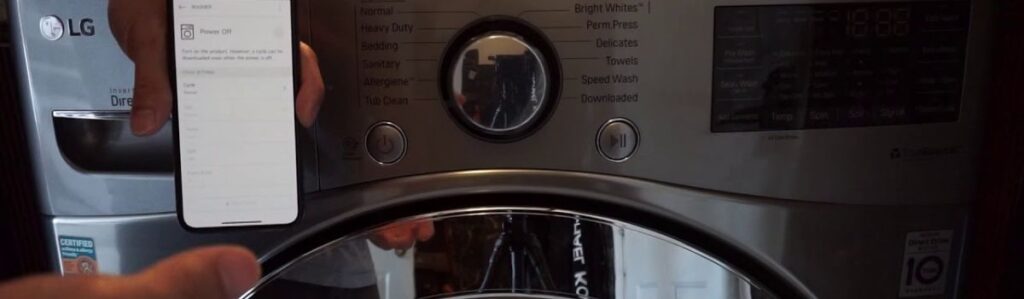
Check Your Smart Dryer Connection: Easy Steps to Test Signal Strength
Smart dryers are designed to bring convenience into your home, allowing you to start, stop, monitor, or receive alerts about your laundry cycles from your smartphone or voice assistant. But none of that works reliably without a stable Wi-Fi connection. And if you’ve ever had your dryer drop offline, fail to send cycle complete alerts, or refuse remote commands, you’re already familiar with the headaches a weak connection can cause.
These issues are surprisingly common in homes throughout British Columbia. Many homes here were built before Wi-Fi was a standard expectation, meaning thick concrete or brick walls, multiple levels, or metal-heavy construction can easily interfere with your signal. Add in routers placed at the front of the house and dryers tucked away in the basement or garage including a wall mounted dryer and it’s no wonder appliances struggle to stay online.
In this guide, we’ll walk you through how to properly test your smart dryer’s connectivity strength, identify the weak points in your setup, and take practical steps to improve it. Whether you’re dealing with persistent signal drops or setting up a new smart dryer for the first time, this guide is tailored for BC homeowners who want reliable performance every cycle.
Why Wi-Fi Strength Matters for Smart Dryers
Smart dryers connect to your home network, enabling remote features such as starting or pausing cycles from your phone, receiving real-time alerts when a load finishes, and tracking maintenance issues. Without reliable connectivity, those benefits quickly fall apart.
You may notice that the app takes longer to load, commands are not registering, or alerts appear long after a cycle has ended. These aren’t just annoying they defeat the purpose of a connected appliance. Worse, inconsistent connectivity can sometimes stop your dryer from working altogether in app-controlled modes.
Understanding the importance of Wi-Fi strength is the first step in solving these problems. With a strong, consistent signal, your dryer functions as intended: accessible, responsive, and easy to manage, regardless of your location within your home.
What Affects Your Smart Dryer’s Connection
Wireless Band Compatibility: 2.4 GHz vs. 5 GHz
Many smart dryers are only compatible with 2.4 GHz networks. This band travels farther and penetrates walls better than 5 GHz but is also more crowded. If your home router is set to combine both bands into a single network name, the dryer may have trouble identifying the correct one.
You can usually log in to your router’s settings to check if the bands are merged or separate. For optimal compatibility, split them and manually assign the dryer to the 2.4 GHz band.
Common Interference in BC Homes
In many BC homes, Wi-Fi interference is more than just a technical buzzword it’s a real problem. Common sources include metal appliances, ductwork, mirrors, tile walls, and even radiant floor heating systems. These materials block or reflect signals, leading to dead zones.
Older homes with thick plaster walls or basement laundry rooms often suffer from weak coverage, especially when the router is placed far away or behind furniture. Even other smart devices and electronics, such as microwaves and cordless phones, can create signal interference if they share the same space as your router.
Router and Dryer Placement
Signal strength drops the further it has to travel, particularly when passing through walls, floors, or dense objects. If your dryer is located far from your router say, in a basement corner and your router is in the upstairs living room your appliance is likely struggling to stay connected.
Ideally, your router should be located in a central position with as few obstructions as possible between it and your dryer. If repositioning isn’t feasible, other solutions, such as extenders or mesh Wi-Fi systems, can bridge the gap.
Tools You Need to Test Signal Strength
Wi-Fi Analyzer Apps
These apps are available for both Android and iOS and provide detailed metrics on your network’s performance. You can measure signal strength (RSSI), detect congested channels, and identify sources of interference.
Look for RSSI levels at or above –60 dBm for good performance. Anything below –70 dBm indicates your signal is weakening, and below –75 dBm is likely too poor for consistent operation.
Using a Smartphone for Signal Testing
Your phone can be a quick diagnostic tool. Stand next to the dryer and check your Wi-Fi bars. Run a speed test or streaming video. If your dryer’s performance is slow or spotty, it’s likely experiencing the same issue.
For more precise analysis, walk around the house and record RSSI levels using a Wi-Fi app. This will help you map weak zones and plan your upgrades.
Step-by-Step: How to Test and Improve Connectivity
Check the Wi-Fi Signal at the Dryer’s Location
Start with a signal test at the dryer. Use a Wi-Fi analyzer app or your router’s admin page to measure the Received Signal Strength Indicator (RSSI). You want:
- –50 dBm: Excellent
- –60 to –70 dBm: Usable
- Below –75 dBm: Weak; the connection may drop
If you’re below the usable threshold, it’s time to troubleshoot.
Confirm Network Band Compatibility
Double-check that your dryer is using the 2.4 GHz band. If needed, separate the bands on your router and rename them (e.g., “Home_2.4” and “Home_5G”). Connect your dryer to the 2.4 GHz version manually.
Reset Dryer’s Wi-Fi Module
Resetting often clears out old network data that may be causing pairing problems. Instructions vary by brand, but most involve pressing and holding a Wi-Fi or Temp button for several seconds. Once in pairing mode, your dryer should appear in the manufacturer’s app.
Optimize Router Settings
Advanced settings, such as Smart Connect and automatic band steering, can confuse some smart appliances. Disable these temporarily. Assign your dryer a static IP address and prioritize it in QoS settings to prevent dropouts during network congestion.
Reconnect via App
Follow the app’s pairing instructions step by step. Be patient and confirm each input, including SSID, password, and confirmation prompts. Successful pairing is usually followed by a screen showing your dryer’s name, status, and controls.
What to Do If Signal Is Still Weak
Add a Mesh System or Extender
Mesh systems work by spreading Wi-Fi evenly throughout your home. Install a node near your laundry area to fill coverage gaps. Alternatively, a good extender placed halfway between your router and dryer can relay the signal effectively.
Create a Smart Device – Only SSID
Reduce signal congestion by creating a dedicated network just for smart devices. This isolates your appliances from heavier bandwidth demands, such as streaming or gaming, giving them a more stable channel to work with.
Keep Firmware Up to Date
Firmware updates often improve network stability. Update your dryer, router, and the app you use to control them. Check monthly or set updates to auto-install when available.
Test Network Speed and Latency
Near the dryer, run a speed test on your phone. A strong connection should provide you with at least 5 Mbps and a ping time of under 100 ms. Anything lower suggests poor performance that needs addressing.
How to Know If It Worked
Once changes are made, test your setup to ensure everything is working as expected. Start a cycle remotely from the app. Watch for real-time progress updates or end-of-cycle alerts. Try stopping the dryer mid-cycle and observe how quickly it responds.
Recheck the signal using your Wi-Fi app. Improved RSSI values and instant responsiveness are signs of success.
Troubleshooting Checklist (Quick Reference)
- Check the Wi-Fi signal at the dryer
- Confirm 2.4 GHz band connection
- Reset dryer Wi-Fi settings
- Reconnect using the app
- Disable Smart Connect/band steering
- Assign static IP and QoS priority
- Add a mesh node or extender
- Test internet speed and latency
- Separate SSID for smart devices
- Update firmware on all devices
FAQ
Why won’t my smart dryer stay connected?
It may be too far from the router, on the wrong Wi-Fi band, or affected by interference. Check signal strength and network settings.
Does my smart dryer require a 2.4 GHz Wi-Fi connection?
Most models do. 5 GHz is faster, but many appliances do not support it.
How far can my dryer be from the router?
Ideally, within one floor or a few walls. Beyond 30 – 50 feet, signal quality drops significantly unless boosted.
Will a Wi-Fi extender fix my dryer’s connection?
Yes, if placed properly. Ensure it’s positioned midway between your router and the dryer, avoiding placement behind obstacles.
Conclusion: Keep Your Dryer Connected
Your smart dryer is only as smart as its connection allows. By taking the time to check signal strength, understanding your home’s layout, and making targeted adjustments, you can significantly improve how your appliance performs day-to-day.
These changes don’t require advanced technical knowledge just a bit of patience and the right steps. And if things still aren’t running smoothly? There’s no harm in calling in a local expert to make sure your smart home is running at full speed.